Create a Google Business Profile: a guide for trades businesses in Austria
Reading time: about 5 minutes for the main text. Use templates and details as needed.
Full version with templates, calculations and further checks
A Google Business Profile is your listing in Google Search and Maps. Customers can find details such as your phone number and the work you offer. The profile is free and was previously called Google My Business. [1]
Before setting up your profile, establish whether you need a new listing or access to an existing one. The details you enter then depend on how your business works day to day. A business that customers visit needs to display its location differently from a tradesperson who only travels to customers. [2] [3] [4]
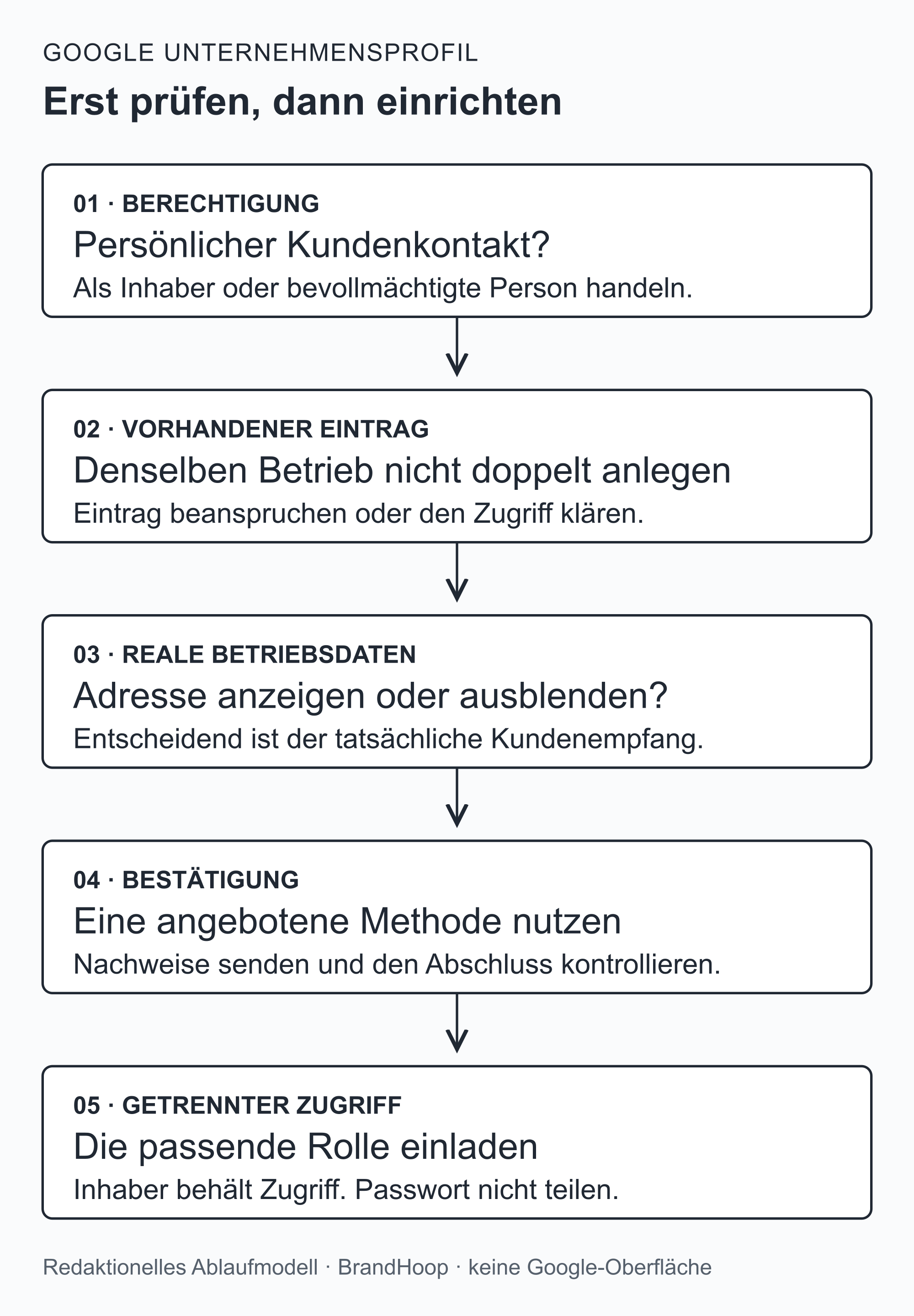
First, establish whether you need a new profile
For trades businesses, a profile requires in-person contact with customers, either at your premises or theirs. An online-only business without this contact is not eligible. The business owner and people expressly authorised to act on their behalf may claim and manage the profile. [2]
Search for your business name and town in Google and Maps. Check that any listing you find really belongs to your business. Your next step depends on the result: [9]
- No matching listing: You can create a new Business Profile on Google.
- A matching, unverified listing: Claim this profile.
- A matching listing that is already managed: Resolve access to it and, if you are authorised, request ownership. Do not create a second profile for the same business at the same location. [9] [10]
The detailed guide to an existing listing will help you claim it. To manage the profile, the business owner should use a Google Account they can continue to access themselves. [b] You do not need a new Gmail address for this. [8]
On an unverified profile, the options "Claim this business" and "Manage now" lead to the claim process. The view may look different depending on your device. The order of the fields and the available features can also vary. [9] [11]
Display your location according to how you meet customers
If you only travel to customers and do not receive them at your business address, keep that address hidden from the public. If Google requests it for setup or verification, you must still provide your real address. Your service area, meaning the places where you take on work, appears publicly. [15] [4]
A location displayed as open to customers must actually receive them and have permanent signage. Your own staff must be there during the stated business hours; a mailbox address is not enough. If you receive customers and also work at their premises, you can display both your location and your service area. [7] [3]
Using your business address for storage or an occasional meeting does not, by itself, make it a location that is open to customers. What matters is how you actually receive customers there. [7] If you serve customers only at suitable business premises, display their actual address. [4] [7]
The entirely fictional bathroom renovation business "Muster Badtechnik" works in selected Vienna districts and in Mödling. It does not receive anyone at its business premises. Its address would therefore remain hidden, and its service area would include only the places it serves. Its name would be "Muster Badtechnik", provided that this is how it presents itself to customers. It would choose its primary category from Google's available options based on the main work it actually does. For verification, it would prepare at its real location for the method offered. [a]
A place within your service area is not an additional branch. [4] [7] The guide to addresses and service areas covers the settings and geographical limits.
Choose towns, postcodes or available regions for your service area. You can select a maximum of 20 areas; there is no option to draw your own radius. [4] Google gives around two hours' driving time from your business premises to the boundaries of the entire area as a guideline. Larger areas may be appropriate for some businesses. [4] [7]
The work you take on can help you choose: you may travel only locally for small jobs and further for larger projects. Start with the places your business can reliably serve. [b]
Use details that reflect your day-to-day business
Before entering any information, prepare a short information sheet. Note the name you use publicly and your main activity. Add your real location, the places you serve and your contact details. Keep any open questions on the sheet until they are resolved. [b]
This internal sheet should also include the intended Google Account and the person responsible for verification. That person needs access to the premises and work equipment. Then enter only the information each profile field asks for. [b]
The profile name should match your verifiable name as customers see it, for example on your website or business sign. Do not add extra search terms or advertising claims. [7] The primary category describes the type of business. Choose the appropriate available category; if there is no exact match, use the broader category that fits best. You cannot create your own categories. [13]
A short sentence describing the work your business mainly does will help you choose a category. [b] Additional categories can cover other activities; a separate category is not intended for every individual service. [13] A legal-form suffix is not required in the name simply because it appears in official documents. What matters is the verifiable name you use publicly. [7]
The business phone number should connect directly to your business. If you work by appointment only, you should not list regular opening hours. Being available by phone does not automatically mean you receive customers. [7] Enter your website's full web address. The description briefly explains your work; it may contain a maximum of 750 characters, without links or HTML code. [11] Add services if your profile offers this feature. [14]
For "Muster Badtechnik", these might include plumbing installations or tiling, provided they are part of its services. These details describe the work offered more precisely than the primary category. [a]
The "Open with no main hours" option is in the "Hours" section. It fits the exception described for businesses that work by appointment only. [16] [7]
For photos, check what you are allowed to publish. You must hold the necessary rights, and private customer details should not be visible. [17] [18] Interior photos of private flats or houses must not be published on Maps, even if you have permission to use them on your website. [19] The Details on descriptions and photos will help you choose.
Google displays the profile photos you upload only after your business has been verified. Public profile media must meet further requirements, which you need to consider when choosing what to upload. [20]
Prepare for the verification method offered
Verification provides evidence of your business and your authority to manage it. Google automatically determines which method is offered; you cannot force a different one. A review follows submission. Submitting evidence does not mean verification is complete, so plan without relying on a promised verification deadline. [5]
If Google offers a video recording, prepare your real location and work equipment. The existence of the business and your authority to manage it must also be clear. Keep confidential details and other people's faces out of the recording. Read the full requirements for the verification video before recording. [6]
Record the video live on a mobile device through your profile. It must be continuous, unedited and at least 30 seconds long. A previously recorded file is not sufficient. Also show the recognisable surroundings of your actual business premises. For a mobile business, professional tools can demonstrate the work you do. Unlocking the company vehicle is one example of how to show your authority to manage the business. [6]
This verification video serves as evidence for Google. A public video on the profile has its own requirements. [20] [6] If the video is rejected, the reason given will show which information was missing. Your next attempt should address that specific gap. [6]
Secure access and check the customer's view
Where possible, the business owner should remain the primary owner, meaning the main owner of the profile. [b] Give employees or an agency a suitable role through their own Google Account. This means you do not have to share your password. The guide to access permissions explains roles and invitations. [12]
A manager can edit profile information, but cannot add or remove users or delete the profile. Owners have broader rights under the applicable role conditions. There can be several owners, but only one primary owner. [12]
To invite someone, open the three-dot menu and go to "Business Profile settings", then "People and access". Enter the person's email address and choose a role. New owners and managers must wait seven days to use certain features, such as transferring primary ownership. This waiting period concerns access permissions and says nothing about how long business verification takes. [12]
After verification, check the listing in Google and Maps while signed out or using a private browser window. [8] Compare it with your information sheet, especially the visible address and service area. Call the number and open the website link on a smartphone. And check in the management account that Google shows verification as complete. [b]
For ongoing updates, see Optimise your Google Business Profile. If the test reveals an unclear or outdated website, you can improve it independently of verification. [b] BrandHoop offers website creation, SEO and ongoing website support for this.
Google help pages checked as of 16 October 2026. Features can change; follow the current guidance in your profile when setting it up.
Sources for the previous version were current as of 16 October 2026; editorially revised on 17 October 2026. Numbers lead to sources; letters explain editorial examples or recommendations. Each source note states what the source supports.
[b] Practical recommendations. The suggested processes and decision aids are editorial applications of the guidance cited. Their specific effect on enquiries or jobs has not been measured here.
[a] Editorial examples. Content labelled as a sample or fictional illustrates possible situations. It does not represent real client cases or evidence of a measured effect.
Sources and context (20 sources)
- Support and customer service for Google marketing tools: present your business on Google — Google
Confirms free creation, display in Search and Maps, and the replacement of Google My Business. The general FAQ on verification methods is not used as the authoritative source for the procedure. Checked: 2026-10-16.
- Guidelines for business eligibility and ownership — Google
Confirms in-person customer contact as a relevant requirement for trades businesses, the exclusion of online-only businesses, and the authority of owners and representatives. Exceptions for specific industries are not applied to trades businesses. Checked: 2026-10-16.
- Business Profiles for service businesses: overview — Google
Defines service-area and hybrid businesses according to whether they actually receive customers at their premises. The mobile installation business illustrates this definition and is not a real client case. Checked: 2026-10-16.
- Manage service areas for service-area and hybrid businesses — Google
Supports selection by town, postcode or region, a maximum of 20 areas, no radius option, and around two hours' driving time as a guideline. A service area is not an additional business location. Checked: 2026-10-16.
- Verify your business on Google — Google
Supports a Google Account without requiring Gmail, automatically selected methods, possible multiple verification steps and a review after submission. No particular method or fixed processing time is promised to the reader. Checked: 2026-10-16.
- Verify your business with a video recording — Google
Supports live recording on a mobile device through the profile, a minimum of 30 seconds, no interruptions or editing, and the three types of evidence for mobile businesses. Confidential details and faces must be excluded. The sample images do not guarantee acceptance; the specific verification method remains Google's decision. Checked: 2026-10-16.
- Guidelines for representing your business on Google — Google
Supports accurate business representation, additions to names, location, signage, staffing when receiving customers, a direct phone number and opening hours. Two hours' driving time is a guideline with expressly stated exceptions. The statement about storage or an occasional appointment applies the conditions for customer-facing locations; it is not an additional Google ban. Checked: 2026-10-16.
- Get started with Google Business Profile — Google
Supports using any email address for an account and Google's recommendation to check the profile in incognito mode. The final checklist brings together the rules explained in this article; it is not a certificate issued by Google. Checked: 2026-10-16.
- Add or claim your Business Profile — Google
Supports searching, creating a new profile and claiming an unverified one, as well as the access process for profiles that are already verified. The registration form at business.google.com/add was not completed. Checked: 2026-10-16.
- Resolve duplicate profiles & ownership issues — Google
Supports resolving an existing listing through access or a claim, rather than creating a second profile for the same business. Separate eligible businesses at the same address are a different case. Checked: 2026-10-16.
- Edit your Business Profile — Google
Supports different management views, the full website URL, and a maximum of 750 characters with no URLs or HTML code in the description. The brief explanation of HTML is an editorial definition, not a programming guide. Checked: 2026-10-16.
- Manage your Business Profile owners and managers — Google
Supports separate Google Accounts, one primary owner, the role comparison table, the invitation process and a seven-day waiting period only for certain features for new owners and managers. The time taken for business verification is a separate matter. The original hl=de request returned 429; the full official de-GB and English versions were read. Checked: 2026-10-16.
- Manage your business category — Google
Confirms the primary category, a suitable broader alternative, no custom categories and a small number of additional categories. No claim is made that an exact category is currently available for the sample business. Checked: 2026-10-16.
- Manage your services on your Business Profile — Google
Confirms that service listings are available only in certain circumstances for particular categories, and describes the services editor. Plumbing and tiling are marked as examples that depend on the services actually offered. Checked: 2026-10-16.
- Manage your business address — Google
Supports using the real address for verification and the documented process for hiding it. The original hl=de request was inaccessible in the web tool; the full official German de-GB version and the English version were read. The visible interface labels were not tested in a real profile. Checked: 2026-10-16.
- Edit your business hours — Google
Supports the Open with no main hours option. The rule for appointment-only businesses comes from the representation guidelines. The original URL with the ref_topic parameter failed; the full German page without that parameter was readable. Checked: 2026-10-16.
- Google Terms of Service: permission to use your content — Google
Supports the platform requirement to upload or share only content for which you hold the necessary rights. The German-language US country version was read; the URL with the AT parameter was inaccessible. Used solely for this general upload requirement, not as Austrian legal advice or permission to publish customer photos. Checked: 2026-10-16.
- Prohibited and restricted content: personal information — Google
Supports the limits on private and personal information in Maps content. The editorial recommendation to keep customer details out of images is more cautious than the detailed exceptions and does not make a claim about every situation in which publication may be lawful. Checked: 2026-10-16.
- Privacy: Maps user-generated content policy — Google
Supports the Maps ban on public photos or videos of the interiors of private flats or houses. The English version expressly limits this to the interior of private residences. Permission for your own website is not treated as permission for Maps. This is not extended to all private property or private verification recordings. Checked: 2026-10-16.
- Manage photos and videos for your Business Profile — Google
Confirms that public profile media require business verification and that public videos have their own requirements. No promise is made of immediate display or automatic approval in the content review. The verification video's minimum of 30 seconds is kept separate from the maximum length for public videos. Checked: 2026-10-16.