Create an Excel customer database: template for small trades businesses
Reading time: about 5 minutes for the main text. Use templates and details as needed.
Full version with templates, calculations and further checks
A customer wants to renovate their bathroom and later asks about the WC too. Their phone number stays the same, but the next tasks differ. A customer database in Excel therefore keeps contact details separate from individual projects. A fixed customer ID, or customer number, connects the two.
You can use the supplied template to try this approach with a fictional example. Afterwards, you should be able to see which task belongs to which project. An enquiry remains an enquiry until an order is actually placed. Keep invoices and payments received separately.
Download the Excel template and make a copy
Open and download the Excel workbook
Save your own XLSX copy and start with the included sample data. The file contains no macros and sends no messages. Set up access protection before adding real customer data.
The file has 100 prepared customer rows and 200 record rows. This describes the capacity of this file, rather than a recommended business size. Adding rows also means extending the formula ranges and data validation, the rules that define allowed entries. Simply appending rows at the bottom is not enough here. Keep the detailed workbook instructions to hand for this.
Understand the four sheets
The workbook separates data entry from the customer card. You only need to change a phone number once, even when the same customer has several projects. German sheet and column names are retained as technical labels, with English explanations below.
| Sheet | What you use it for |
|---|---|
| Kunden (customers) | Enter contact details and assign each customer a fixed customer ID |
| Vorgaenge (records) | Give each enquiry or order its own record ID and link it to the customer ID |
| Kundenstammblatt (customer card) | Select a customer ID in B5 to view contact details and record counts |
| Anleitung (instructions) | Read the instructions and set the shared review date in B5 |
The two B5 cells have different purposes. In ‘Anleitung’, you change the date used by all due date checks. In ‘Kundenstammblatt’, you select the customer whose card you want to see. Selecting a customer on the card does not change the review date.
In the ‘Kunden’ sheet, ‘Kunde / Firma’ (customer/company) and the contact person are part of the contact details. Phone and email record how to get in touch, and the address is held here too. ‘Kunde seit’ (customer since) is a date, while the note is a short factual comment. Excel calculates the ‘ID-Prüfung’ (ID check) column. You do not need to enter a formula yourself.
The customer number stays the same when you sort the table. For another project for the same customer, assign a new record ID and use the same customer ID. The name alone cannot connect the records reliably, because different customers can share a name.
The customer ID, phone number and postcode fields are already formatted as text. This helps retain leading zeros and the plus sign in a phone number. Microsoft describes this approach for numerical codes. [2] Still check any values you bring in before working with them.
The complete customer fields and input and formula columns for records are listed in the detailed instructions.
Work through the fictional example
Open ‘Kunden’ and find M-K001, ‘Sample Customer Alpha’. All contacts and properties in the file are fictional. The next two records belong to this one customer. They show different tasks at the same house. [a]
| Record ID | Property | Status | Next action | Due date |
|---|---|---|---|---|
| M-V001 | Sample bathroom GF | Callback pending | Call back about site visit | 2026-10-10 |
| M-V002 | Sample upstairs WC | Open quote | Follow up on quote | 2026-10-15 |
For the sample bathroom, the callback about a site visit is still outstanding. The WC already has an open quote. The property description shows which project the task belongs to. If both were held in a general customer note, it could be hard to tell which quote or callback was meant during the next phone call.
For practice, you can enter the details for M-V001 yourself in your test copy. The enquiry is ‘Bathroom renovation enquiry’, received on 2026-10-01. ‘Office A (sample)’ is responsible. Both record rows use customer ID M-K001. ‘Kunde (Formel)’ (customer, calculated) brings in the name automatically. Leave the blue formula columns unchanged.
Rows 8 to 107 in ‘Kunden’ and rows 8 to 207 in ‘Vorgaenge’ are prepared for your own entries. For each record, enter the enquiry and the date received. Describe the next action clearly, then enter its due date and who is responsible. The full operating sequence explains how these entries work together.
After a conversation, update the next task in the existing record row. The record keeps its ID. An additional project gets its own row. This keeps the difference between continuing an enquiry and receiving a new one visible. This field does not provide a complete history of earlier conversations.
Now set the review date in ‘Anleitung’, B5, to 2026-10-12. Then select M-K001 in ‘Kundenstammblatt’, B5. With the sample data unchanged, this customer has two open records, and one action is due by this date. The individual tasks remain in ‘Vorgaenge’.
The callback due on 2026-10-10 falls before the selected review date. The follow-up on 2026-10-15 falls after it. Both records remain open because of their statuses. One action is therefore due by the review date. This count describes the sample's position on that date.
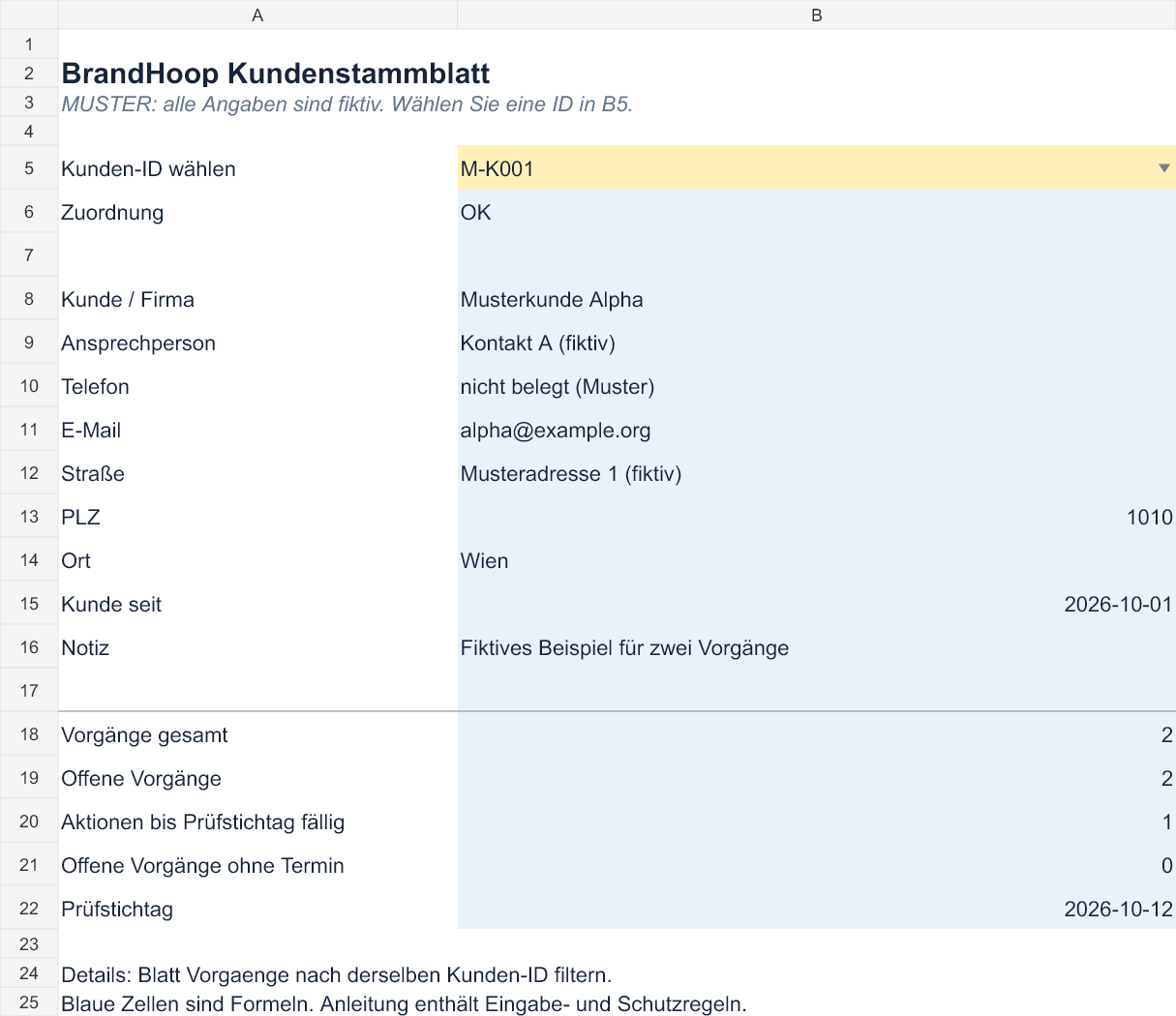
Try changing a sample due date and look at the display again. You set the review date manually. The template does not send automatic reminders.
Check the next tasks
Use the column header in ‘Vorgaenge’ to filter for M-K001. A filter temporarily hides other rows without deleting them. [3] Then check the next action and its due date.
When sorting, use the whole table of related data. The order can change, but the details in each row must stay together. Sorting individual columns separately from the rest of the data can put contact details against the wrong customer. Microsoft's sorting guidance explains this risk when sorting part of a range. [4]
The status list contains New, Callback pending, Open quote, Commissioned, Completed and Cancelled. Only the last two values count as done here. ‘Commissioned’ therefore remains open and tells you nothing about payment received.
‘ID missing’ or ‘Duplicate ID’ means you need to correct the identifier first. An unknown or duplicate customer ID prevents the template from linking the customer unambiguously. ‘Due date missing’ and ‘Action missing’ flag incomplete tasks, while ‘Overdue’ refers to the review date you have set.
An unknown customer ID or one used more than once also triggers an alert on the customer card. When the number is duplicated, the details that depend on it stay blank. A blank display does not mean there are no records. Correct the customer link first, then check the card again.
‘Today’ marks an action due on the review date, while ‘Scheduled’ means a later due date. If you see ‘Check status’ or ‘Check date’, check the entry. The status must match the allowed list, and the date must be stored as a date value.
Check the alerts after pasting entries too. Data validation warnings do not appear when entries are made by copying or filling cells. [5] The explanation of all check messages and sorting can help if a display is unclear.
Set up protection before adding real contacts
The downloaded file is unencrypted. Before using it, choose a protected storage location and decide who is allowed access. Excel worksheet protection prevents certain changes to cells, but does not replace security measures for the file. [8]
Clarify the legal basis for your purpose and how the people concerned will be informed. Record only the details you need and set deletion rules. The WKO describes these data protection principles. [1] Keep notes factual. They should not contain personal speculation. [b]
For an initial callback without commitment, you may not yet need the exact street address. What matters is which details you need at that point for the agreed purpose. The presence of extra fields is no reason to collect more personal information just in case. [1]
Choose a current working copy and decide who maintains it. Backups also need protected access. Backups and access controls are among the protective measures the WKO lists. [9] Test restoring a backup with sample data first. [b] The data protection notes and rules for working copies and backups explain these limits in more detail.
Decide whether the spreadsheet suits your workflow
The template suits a workflow where one shared working copy and the current next task are enough. If you need a complete history of earlier conversations or different access rights, look for a customer management system with the features you need. Copies being edited at the same time can also complicate the workflow. The number of contacts alone does not determine when to switch. [b]
The property description has limits too. It helps distinguish the bathroom from the WC, but cannot fully manage several buildings with their own documents. If those documents are part of your everyday work, describe this requirement as clearly as possible before choosing another system. [b]
Note these requirements for choosing a CRM for a trades business. A later switch needs an import test with sample data. The instructions for separate CSV exports explain how to prepare.
When exporting to CSV, Excel saves only the active sheet, and formatting and features can be lost. Keep the complete XLSX copy. [6] Export customers and records separately, keeping the IDs. The import test must show that both sample records still belong to M-K001. [b]
After the trial, set up your protected working copy. Replace the fictional entries with your own customers and their linked records, keeping the formulas and validation rules. Record the agreed scope of work in the separate order record form.
Editorial version dated 16 October 2026. Numbers link to sources, while letters explain editorial examples or recommendations. Each source note states what the source supports.
[a] Editorial examples. Content labelled as sample or fictional illustrates possible situations. These are not real customer cases or evidence of a measured effect.
[b] Practical recommendations. The suggested workflows and decision aids are editorial applications of the principles cited. Their specific effect on enquiries or orders has not been measured here.
Sources and context (9 sources)
- Data protection principles at a glance — Wirtschaftskammer Österreich
Supports the general principles covering legal basis, transparency, purpose limitation, necessary data and storage limitation. Does not determine the applicable legal permission or a business's specific deletion or retention period. The callback and note-field examples are editorial suggestions for applying the principles. Checked: 2026-10-16.
- Keeping leading zeros and large numbers — Microsoft Support
Explains the automatic conversion of numerical codes and how text formatting retains their original format. The text formatting of these specific fields was checked separately in the XLSX file. This does not guarantee that external imports or pasted entries will be error-free. Checked: 2026-10-16.
- Filter data in a range or table in Excel — Microsoft Support
Supports the explanation that filters temporarily hide rows that do not match, and that filtering is controlled through column headers. Does not establish correct customer links in this specific template or any effect on the business. Checked: 2026-10-16.
- Sort data in a range or table in Excel — Microsoft Support
Supports the warning about sorting part of a range separately and the use of sorting for a whole connected table. Microsoft explicitly states that the partial-range sort described cannot be performed in this way within an Excel table. The article warns against manually separating related details, rather than against the normal table feature. Checked: 2026-10-16.
- More on data validation — Microsoft Support
Specifically supports the statement that data validation warnings do not appear when data is entered by copying or filling cells. This does not mean all entries or all Excel versions produce the same errors. Checked: 2026-10-16.
- Save a workbook to text format (.txt or .csv) — Microsoft Support
Supports the statements that CSV saves only the active sheet, text formats remove formatting, and changing format can lose data or features. Describes Save As and Save a Copy. Makes no claim about a specific CRM import or guaranteed transfer of the relationships. Checked: 2026-10-16.
- Your obligations as a controller — Austrian Data Protection Authority
Supports choosing technical and organisational measures to suit the risk, restoring availability and regularly checking effectiveness. The authority has not assessed this specific file or the reader's organisation. Downloading it provides no guarantee of compliance. Checked: 2026-10-16.
- Protection and security in Excel — Microsoft Support
Supports the distinction between worksheet protection and file protection. Worksheet protection restricts changes to locked cells and is not a security feature. Does not establish GDPR compliance or that a password alone provides sufficient security. Checked: 2026-10-16.
- GDPR: Data security through technology and data protection-friendly defaults — Wirtschaftskammer Österreich
Lists backups and access controls as examples of technical and organisational measures. Does not establish a particular secure Excel configuration or a successful restore test. The suggested test with sample data is a practical aid. Checked: 2026-10-16.