Full version with all templates and detailed checks. Back to the main article
Create a Google review link and QR code: a guide for your business
A customer wants to share their experience of your business on Google. In an email, a clickable review link takes them there; on a printed document, they can scan a QR code with their smartphone. Google provides both options for reviews. [1]
You can get the relevant link and QR code from your Google Business Profile, the listing for your business in Search and on Maps. [2] [3] It is worth testing them yourself before use: does the link show the right business, and does the code work in the finished printed version? You only need to go as far as the option to leave a review. No test review is published. [b]
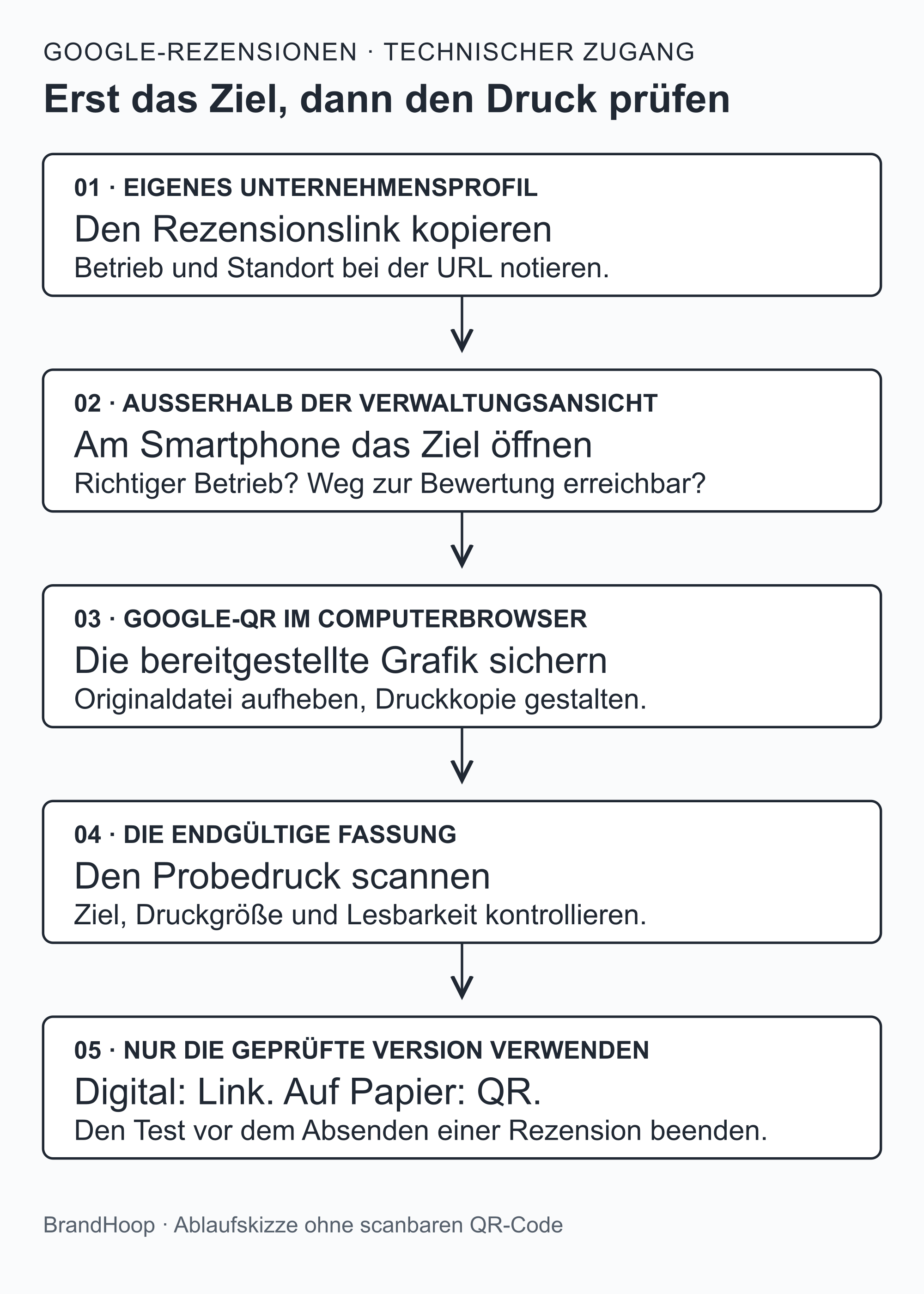
What you need to get started
You can complete the entire setup on a computer, including the QR code. Google currently only offers QR code creation in a desktop browser. [2] You need access to the Google Account linked to your Business Profile. After signing in, you can find the profile by searching for the business name and location, or for “my business”. This is explained in the Google help guide to finding your own Business Profile. [3]
If you have several locations or there are businesses with similar names, you should be able to identify the intended business by its name and visible location details. If the business address is not publicly visible in the profile, use the other details to compare. You do not need an address in your note either. [b]
Keep the location and saved link in the same note. When adding the link to a template, you can then see which business it belongs to. For several locations, separate files make sense, so that one business's handover document does not contain another's link. [b]
Review link or Maps link?
A review is another term for an assessment. The review link from your profile is intended to let customers review your business. [1] The standard Share function in Maps serves a different purpose: it shares places, maps or directions. This is explained in the Google Maps help guide to sharing maps and directions. [4]
The source of the link therefore matters for your template. An address copied from a browser or a general Maps link does not replace a tested review link. [b]
| Access method | What it is intended for | What to check |
|---|---|---|
| Review link from your own Business Profile | Customers can use it to review your business. [1] | Correct business and the option to leave a review, after signing in if necessary |
| General Maps or Share link | Sharing a place, a section of a map or directions. [4] | The place and information displayed; do not present it as a tested direct link for leaving a review |
| Google QR code for reviews | Customers scan the code on paper to reach the option to leave a review. [1] | Scan the saved image and the final test print separately |
The checks in the last column are practical guidance for your business. [b]
Copy your Google review link
1. Open the correct Business Profile
Now open the profile for the intended business and location in the linked Google Account. [3] If the management controls are missing, first check which account you are signed in to. [b]
2. Copy the link for Google reviews
The official instructions for the review link and QR code give these steps: [2]
- Open “Read reviews” in your Business Profile.
- Select “Get more reviews”.
- Use “Copy” to copy the review link. [2]
Save the complete copied link in your location note. Keep the web address, or URL, exactly as Google provides it. A link you build yourself from the business name, or another business's address, would not be a reliable way to reach your own business. [b]
3. Make an initial check of the copied direct link
A new browser window shows where the saved address leads. For this first check, use a private window, also called an incognito window: it lets you view the result separately from the profile you are managing. You should see the intended business and the option to review it. [b]
This first look on a computer is not enough. The next section of checks covers the smartphone test, which shows the screen after opening the link or scanning the code. [b]
Save Google's QR code on a computer
The QR code is available in the same section for review requests. On a computer, right-click it and select “Save image as…”. [2]
Including the business and location in the file name makes it easier to identify later. Keep the image in the format offered. Use the original file as your starting point, and a copy to design a card or handover document. [b] You do not need an additional QR code program for the Google method described here. [2]
If the image is missing, first check the device, account and selected profile. Compare them with the Google instructions linked above. Another business's QR code does not lead to your own business, so it is unsuitable even for an initial draft. [b]
Test the link and QR code
Start with the direct link, then the saved QR code image, and finally the finished test print. Once you know the link works, you can investigate any later scanning problem in the image or print layout. [b]
The link test
To test the link, open the saved review link on a smartphone, for example from your own test note or a message to yourself. The business name and visible location information must match the intended business. [b]
You need to sign in to a Google Account to write a Google review. [1] A sign-in prompt may therefore be part of the process. After signing in, you should see the correct business and the option to leave a review. The steps may look different depending on the browser and whether you are signed in. [b] The Google Maps help guide to writing reviews shows the step for writing a review and signing in. [5]
The test ends before publication: do not submit stars or any test text. If you do not sign in during the test, mark this part as “untested”. The process up to the option to leave a review has yet to be checked. [b]
Google reviews are public and cannot be published anonymously. [5]
The QR code test
Display the saved image on another screen or print it for an initial test. When scanned with a suitable smartphone, the recognised link leads to the saved destination. The intended business should appear when you open it. [b]
Next, test the version customers will actually receive: the invoice, handover document, card or display stand at its intended print size. A successful scan of the original image tells you nothing yet about whether the reduced graphic is readable on that paper. The test print is what counts. [b]
Use different devices if possible, such as Android and iPhone. The lighting and distance should match the intended location. A blanket minimum size cannot replace this test. If scanning remains unreliable, adjust the size or appearance and test again. [b]
A test record your business can copy
You can copy the following list into your own working note. Fields marked [enter details] are for information from your actual test. [b]
- Business and its location: [enter details]
- Review link from your own profile saved: yes / no
- Direct link checked on a smartphone; device and date: [enter details]
- Correct business identifiable after opening: yes / no
- Route to leaving a review checked after signing in: yes / no / untested
- Google QR code image saved and scanned: yes / no
- QR code checked in the final test print: yes / no
- Second device checked; device and result: [enter details]
- Test ended without publishing a review: yes / no
- Approved for the intended use; name and date: [enter details]
This shows which version has already been checked and what remains unresolved. Use a version only once it has been tested for the intended purpose. [b]
If something does not work
A scanning error does not necessarily mean the review link is wrong. Your results so far and the following table help narrow down the problem. [b]
| Observation | Next useful check |
|---|---|
| A different business appears | Return to your own correct profile and copy the review link again. Only then correct any existing templates. |
| Google asks you to sign in | Sign in for the test, then check the business and the option to leave a review. |
| The direct link works, but the QR code does not | Scan the saved original image and the test print separately. Check changes to the size, contrast or layout. |
| Only a general profile view opens | Compare the saved URL with the review link from your own profile and check the process again on a smartphone. |
| The QR code image is missing from the profile | Check the desktop browser, account and profile, then read the current official instructions. |
Change one part at a time when troubleshooting. If the link and saved QR code image work, move on to the print layout. Keep the link and original image, and retest the corrected print. [b]
Where to use the link and QR code
Google suggests using receipts, thank-you emails and a printed QR code at the business premises. [2] The right format for your business depends on the medium.
In emails, SMS messages or on your website a clickable review link can be used directly. A label such as “Share your experience on Google” explains the destination. Someone already reading the message on a smartphone can follow the link without having to scan a QR code on the same screen. [b]
Use the tested QR code on printed invoices and handover documents. A digital PDF can also contain the clickable link. For cards and display stands at your premises, a short explanation beside the code is enough; test the finished version in its actual position. On social media platforms, also check whether the link you add can be clicked in the intended post. [b]
Test the finished template too. The saved original URL may be correct while an older email template still contains a different link. [b]
Voluntary feedback without prescribed content
Reviews must reflect actual experiences. Incentives such as discounts or free services for publishing a review, or for changing or removing a negative review, are prohibited. Google also prohibits preventing negative reviews or selectively asking for positive ones. Asking a satisfaction question first, then giving the review link only to satisfied customers, would therefore be an unsuitable way to select recipients. [6]
Google's policy also prohibits asking or pressuring customers to leave a review while still on site. The printed code remains an optional way to give feedback later. Google also prohibits instructing staff to ask customers for a specific number of reviews or particular content. [6]
For guidance on organising neutral invitations in everyday work, see the guide to the review process.
Example for a bathroom renovation business
The following scenario is fictional and describes one possible way to divide the work, not a client test that was carried out. [a]
A small bathroom renovation business wants to mention Google reviews in its email on completing a job and on a printed handover document. The office saves the link from its own profile alongside the relevant location and prepares both templates. During testing, the link opens the correct business and the saved QR code image scans. But on the reduced-size test print of the handover document, the smartphone does not recognise the code.
The office keeps the link and original image, revises the print layout and tests the new print again. In the note, it records which version was checked and where it is to be used. If the link or location changes later, it checks the match again too. [a]
Your next step
An existing email for completed jobs or handover document offers a manageable starting point. The test record shows what already works and which steps remain unresolved. [b]
BrandHoop provides support with SEO, website creation and ongoing website care. Adding the review link to your website includes giving it a clear label and testing the finished implementation. [b]
Related guides
- Collecting Google reviews: for neutral invitations and the appropriate contact channel.
- Replying to Google reviews: for responding to praise or criticism received later.
- Optimising your Google Business Profile: for checking your existing profile and its contact details.
- Websites for trades businesses: for giving the link a clear place on your website.
Sources
Sources for the previous version checked as at 16 October 2026; editorially revised on 17 October 2026. Numbers link to sources; letters explain editorial examples or recommendations. Each source note states what that source supports.
[b] Practical recommendations. The suggested steps and decision aids are editorial applications of the cited guidance. Their specific effect on enquiries or jobs has not been measured here.
[c] Editorial illustration. The illustration explains a relationship. It is neither a real client reference nor evidence of a measured effect.
[a] Editorial examples. Content identified as a sample or fictional illustrates possible situations. It does not describe real client cases or provide evidence of a measured effect.
Sources and context (6 sources)
- Tips for getting more reviews — Google Business Profile Help
Confirms that customers can click a Google link or scan a QR code to leave a review, and that they must sign in to a Google Account. The article does not draw on any claims about trust, rankings or conversions. A help guide is not empirical evidence of additional reviews. Checked: 2026-10-16.
- Create a link or QR code to request reviews — Google Business Profile Help
Confirms the review link and QR code, the menu steps, the current restriction of QR code creation to desktop browsers, saving with a right click and the suggested places to use them. It guarantees no particular image file type, vector file, minimum print size or effect on review numbers or ratings. Device, print and template checks are practical editorial guidance, not a testing standard approved by Google. Checked: 2026-10-16.
- Find your business on Google — Google Business Profile Help
Confirms that the profile can be found in Search and Maps, that you sign in with the linked account, and that you can search by name and town or city, or for “my business”. The location note, separate files and identity checks are our own suggestions for organising the work. The source is not interpreted as requiring a business address to be displayed. Checked: 2026-10-16.
- Share, send or print directions from Google Maps — Google Maps Help
Describes sharing directions, places and maps. The comparison with a review link concerns the documented purpose of these functions. It does not establish a general rule that every Maps URL must open a particular screen on every device. Checked: 2026-10-16.
- Add, edit or delete reviews and ratings on Google Maps — Google Maps Help
Confirms that reviews are public and cannot be published anonymously, and shows the “Write a review” step with sign-in. The original article link without a platform parameter remains unchanged in the body text. The same official German help page was successfully read with a desktop platform parameter; earlier attempts to access the plain German and English links directly were blocked by Google. This does not document an actual smartphone test or account sign-in. Checked: 2026-10-16.
- Prohibited and restricted content — Google: Maps user-contributed content policy
Fake engagement and review manipulation: genuine experiences, no incentives for reviews or for changing or removing negative reviews; no preventing negative reviews or selectively requesting positive ones; no requests or pressure to leave a review while still on site, and no prescribed content. It is also prohibited to instruct staff to ask customers for a specific number of reviews or particular content. Screening customers by satisfaction is an editorial example of the ban on selectively requesting positive reviews. A QR code displayed for customers to use voluntarily is not subject to a blanket ban; the other Google help guide explicitly mentions it. The article recommends it as an optional way to give feedback later. This is not legal advice and makes no promise of particular star ratings or review numbers. Checked: 2026-10-16.